Folders and links
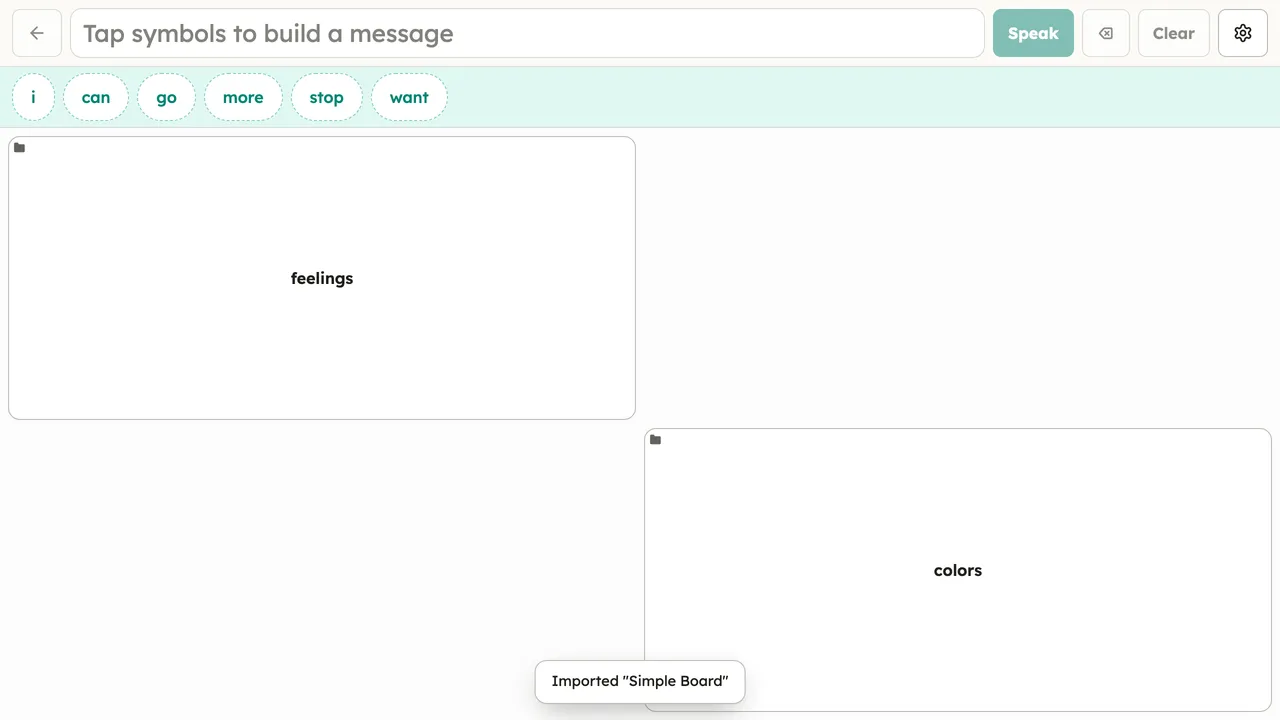
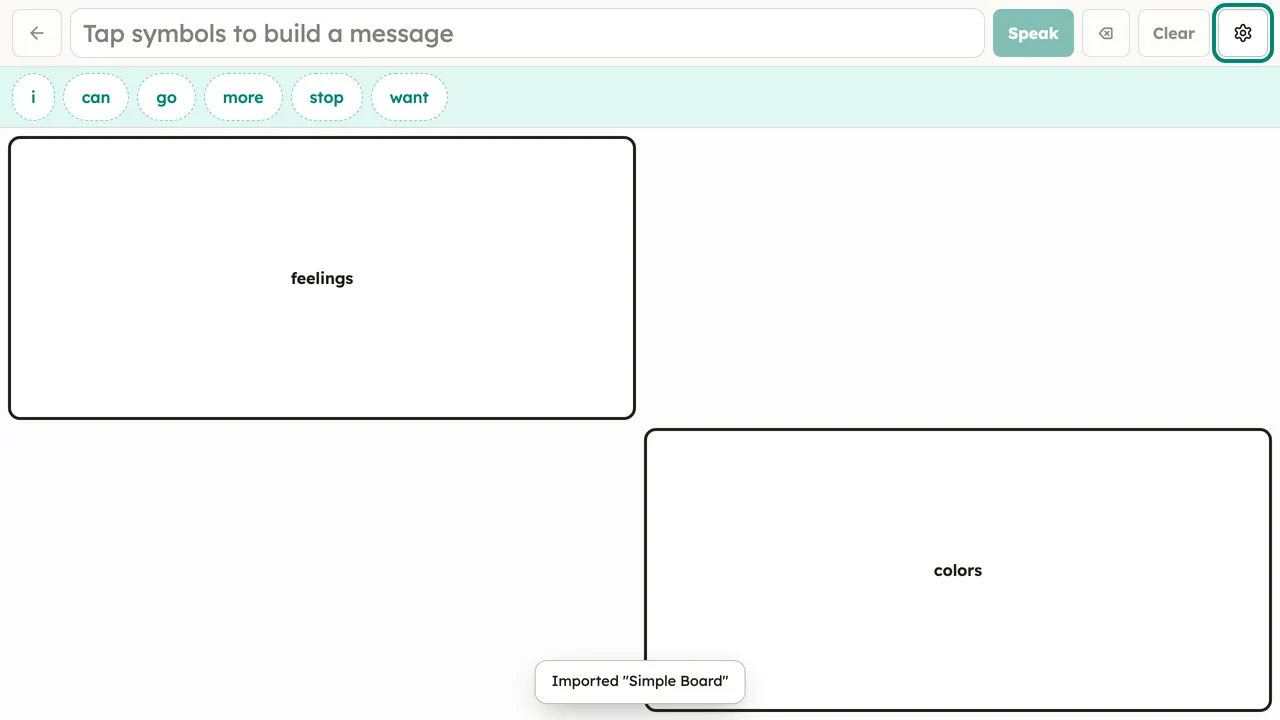
A button can open another board instead of speaking — that’s how food menus, people pages, and topic boards hang off a core board. Tapping a folder button navigates into the sub-board; the back control in the message bar returns to the previous board.
How folder buttons are marked is a per-person display choice (Setup → Display → Folder buttons look like): a corner mark, a folder tab, a bold outline, or no marking at all.
Making a folder
Section titled “Making a folder”You can turn any button into a folder while editing — it works offline, on any board you built in the app or imported.
- Open the board editor (Setup → Edit board, or Setup → This board → Edit this board).
- Tap the button you want to make into a folder. Its editor opens.
- Under Folder, tap Make into a new folder…. The button becomes a folder and a new blank page is created behind it.
- Tap Open folder to edit its buttons → to go into the new page, then add buttons the usual way (tap an empty + cell → Add button). Nested folders are fine — you can make a folder inside a folder.
- Use ‹ Back in the editing bar to return to the parent board. Tap Done when you’re finished.
The new page lives inside this board: it travels with the board when you
export or share it as an .obz, and it does not clutter your
boards list.
Point a button at an existing board
Section titled “Point a button at an existing board”If the set already has more than one board, the Folder section also shows an Opens board menu. Pick a board to make the button open it — handy for a shared “menu” page reachable from several places. Choose None (a normal button) to remove the link and make it speak again.
Back and home buttons
Section titled “Back and home buttons”To recreate the “back” and “home” buttons you see in many published boards, set a button’s When tapped action to Go back (previous board) or Go to the home board — no target board to pick, and they travel through OBF export/import.