Buttons
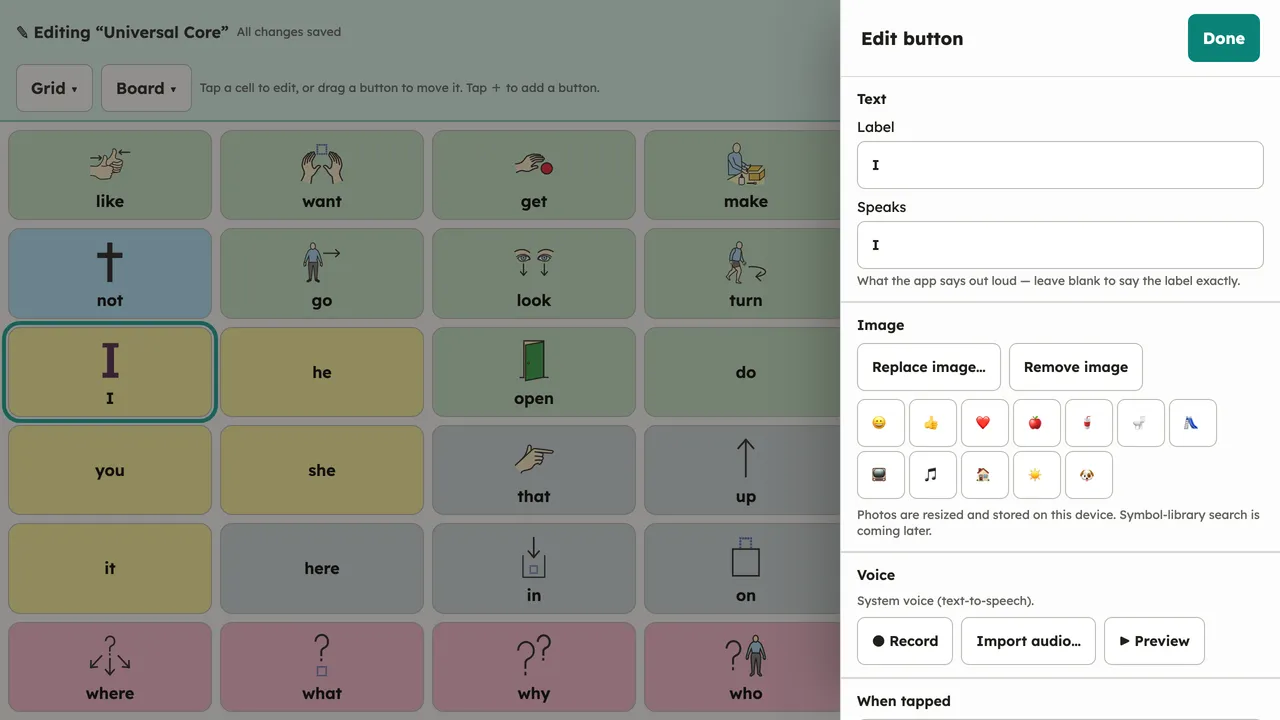
To change what a button says or shows, enter edit mode and tap the button. Its editor sets:
- The label shown on the button and the text it speaks (they can differ).
- Its look. Colors follow the board’s own scheme; many boards use Fitzgerald-style color coding (yellow for people, green for verbs, blue for describing words…).
- An image, either a symbol or a photo.
- What happens when it’s tapped (the When tapped menu) — see below.
- Whether it’s a folder — under Folder, point it at an existing board or make a new page (see Folders and links).
When tapped
Section titled “When tapped”Most buttons speak — they add their word to the message and say it. The When tapped menu can change that to one of:
- Add text, Add a space, Backspace, or Clear message — build and edit the message without a separate keyboard row.
- Speak the whole message — say everything in the sentence bar so far.
- Go back (previous board) — a “back” button, like the ones in many published boards. Returns to the board you came from.
- Go to the home board — jump straight back to the top board of the set.
The back/home actions match the Open Board Format :back and :home conventions, so a button set
this way exports and re-imports correctly (and imported boards that use them now work here too).
Outside edit mode, tapping a button does its action — by default, speaks its text (or adds it to the message, in sentence mode).